2 min readUpdated 7 August 2026
Photograph your Disabled Bus Pass showing the entire card, and check it has not expired.
Step 1 - Take a photo of your disabled bus pass
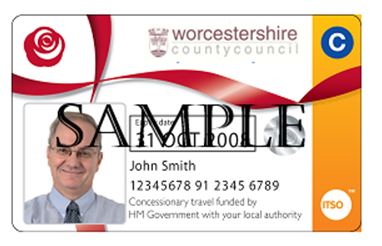
Photo should show all the details we need to verify:
- The entire card is showing
- The pass that has not expired
- Your name and photo are legible
Example of a disabled bus pass:
Step 2 - Review this checklist before you upload
Check your photo:
- shows the whole bus pass
- the text is all legible
- the bus pass is still valid and has not expired
Step 3 - Upload your photo
In most cases a disabled bus pass photo taken correctly will be automatically approved.
You will automatically be taken to the payment screen to complete your Purpl membership subscription.
Tips on how to take a good photo
- Good light, and no flash - the flash reflects off the card surface
- Card flat on a surface, camera directly above it
- Check every line of text is legible before uploading
My disabled bus pass upload failed, what shall I do next?
Please do not upload the same photo again - it will fail.
Check the checklist above and then retake.
All failed documents go through to manual review and we will contact you with the reasons why or if it was due to the lighting and we were able to approve it manually you will receive a Welcome email.
Related help
My document was rejected, what do I do next?
How long does verification take and how do I check the status?
How do I take and upload a document photo that Purpl can accept?
I am having difficulty uploading my document. What should I do?
What if my document has more than one page?
Why am I being asking to verify again?
What happens to my verification data?