1 min readUpdated 7 August 2026
The Nimbus Access Card is verified by typing in your details, not by uploading a photo. Enter your name and card number exactly as printed on the front of the card.
Step 1: Select Access Card from the document list
You can only use this option for the official Nimbus Access Card.
Unlike most of our accepted documents, there is no photo to upload.
Please note: we do not accept the National Disability ID card.
Step 2: Enter your Access card details
- Your card must be valid and in date.
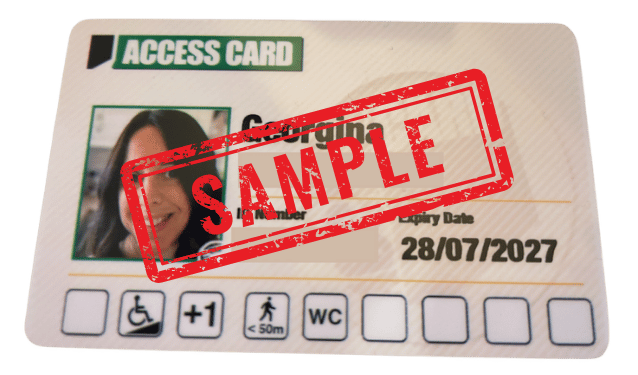
- Enter everything exactly as printed on the front of your card.
- Your card number is between 4 and 7 digits.
- Do not add spaces, dashes or any other extra characters.
- Check every character before submitting - a single wrong digit will prevent it from matching your card to their database.
Example image:
Step 3: Log in and enter details
Step 4: Your details are checked against the Access card database
If you have entered the correct details then your card will be automatically approved and you will move onto the payment screen to complete your subscription.
If your details are not recognised
- Check you have entered the details correctly.
- If you have a hyphened name or a special character the system may not recognise it.
- Please don't keep trying instead contact support for further help.
Related help
My document was rejected, what do I do next?
How long does verification take and how do I check the status?
How do I take and upload a document photo that Purpl can accept?
I am having difficulty uploading my document. What should I do?
Why am I being asking to verify again?
What happens to my verification data?